Grant access at the right scope
If you administer an Exp-Bench account or project, use this page to invite people, assign access, and change it when responsibilities change. Exp-Bench coordinates research; access determines who can manage that research and which agents can perform it. Agents run experiments in environments you provide; access to Exp-Bench does not grant access to the external target project.
If you work with several teams, one user identity can belong to several accounts. Each account membership has its own account role and status. Account owners and administrators manage membership in their account. Access in one account does not grant access in another.
If someone needs to administer research, give them a separate project membership. This narrower grant applies to one project within an account. An account role alone does not make the user a project administrator or grant access to project research content.
Choose the required authority
To decide which access to grant, first identify the scope of the work. The hierarchy below shows accounts containing projects. The grants at each scope remain separate; authority does not automatically pass down the hierarchy.
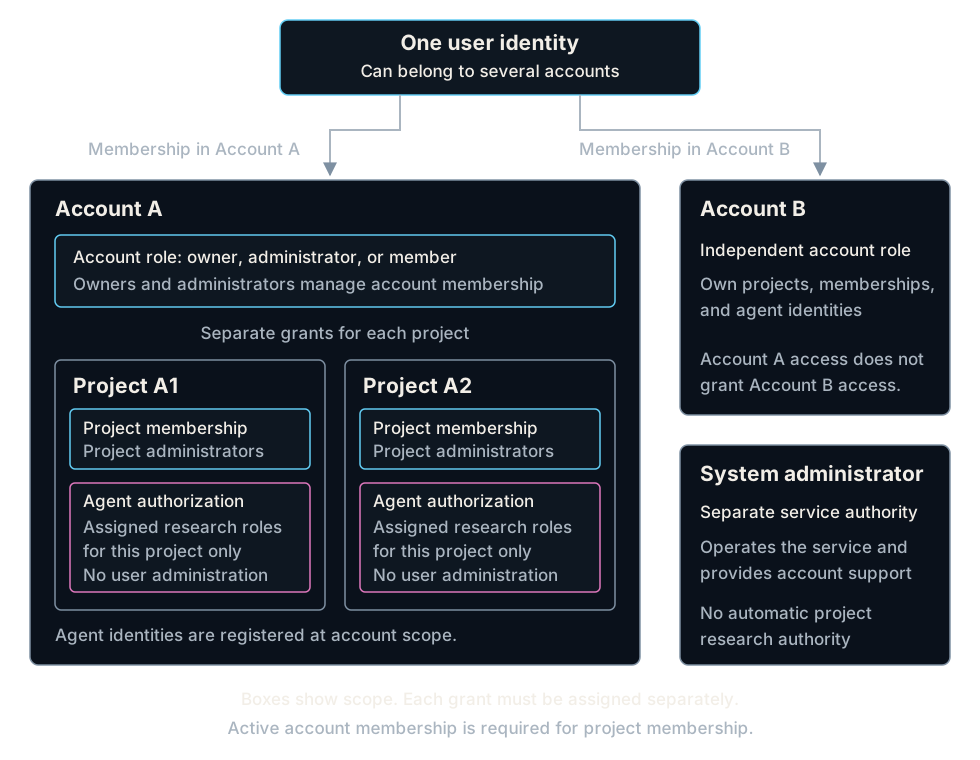
Open the access diagram for a larger view.
To match an administrative task to a role, use this table. One user can hold several roles, but each role applies only at its stated scope.
| Role or grant | Scope | What it permits |
|---|---|---|
| Account owner | One account | Manage account access and explicit project grants, create projects, and perform owner-only actions, such as account archival. |
| Account administrator | One account | Manage members, invitations, agent identities, and explicit project grants, and create projects. Owner-only actions require an owner. |
| Account member | One account | Belong to the account. Project administration requires a separate project membership. |
| Project administrator | One project | Define objectives, configure research, manage project access, authorize agents, and make project decisions. |
| Agent authorization | One agent identity in one project | Perform only the assigned research roles. It does not grant user administration. |
| System administrator | The service | Operate the service and provide account support. This role does not grant project research authority. |
Confirm the account before changing access
To manage access in the correct account, open the user menu and check the current account and your account role. Select Switch account if you need another account. Your role can differ between accounts, so check it again before you invite someone or change a membership.
Invite a person to an account
To bring someone into your account, sign in as an account owner or administrator. Open Invitations and select Invite by email. Enter the person's email address and the account role they need. The page shows delivery status, expiry, and acceptance. A message marked sent means the mail provider accepted it; membership starts when the recipient accepts.
To join an account after receiving an invitation, open the email link. Review the account, inviter, role, and expiry. Use an existing password or create a new user identity as the invitation flow directs. Acceptance adds only the invited account membership. It does not grant project administration or change your memberships in other accounts.
To resolve an expired or failed invitation, open Invitations and resend it. Invitations expire, and resending invalidates older links. To stop an unused invitation from granting access, revoke it. If email delivery is unavailable, ask the service operator to check the mail configuration. Keep invitation links and tokens out of public channels.
Change account membership
To change someone's account role or access status, open Members, find the person, and select Manage. Set the required role and status, then save. Use suspended to stop access temporarily or removed to withdraw the membership. These changes apply to this account's membership; they do not change the user's identity or memberships in other accounts.
To change ownership, use an account owner. Administrators can assign the administrator and member roles, but owner-role changes require an owner. The service prevents removal or suspension of the last active owner. Establish another active owner before withdrawing the previous owner's access.
Add a project administrator
To share responsibility for one project's configuration and decisions, open that project as a project administrator. Select User access → Add administrator. Select an active member of the project's account. If the person does not appear, ask an account owner or administrator to invite them to the account first.
To give the same person responsibility for another project, add them under that project's User access as well. A project administrator can define objectives, configure research, authorize agents, inspect evidence, and make project decisions. The grant applies only to the selected project; it does not grant account membership management. Having more than one project administrator helps share this responsibility.
To administer an existing project as an account owner or administrator, open the project. If the page shows Project membership is required, select Grant myself project administration. This creates an explicit project membership; your account role alone does not expose the research content.
Change or remove project access
To stop someone's administrative access to one project, open User access, find the person, and select Manage. Change the status to suspended or revoked, then save. This changes the project membership and preserves the person's account membership and access to other projects.
To investigate why project administration is unavailable, check both the account membership and the project membership. Project access requires active account membership. Restoring account access does not create a missing project grant; check the status of both records.
Register an agent and authorize its research roles
To give an agent an identity, an account owner or administrator opens Agents, registers an agent identity, and manages its identity tokens there. Registration and authentication alone do not authorize research work.
To let that agent work on a project, a project administrator opens Authorized agents, adds the identity, and assigns its research roles. The five roles are ideator, hypothesis reviewer, experimenter, results reviewer, and integrator. Authorize only the roles the agent needs. See Connect agents for the setup procedure.
To stop new work for an agent in one project, suspend or revoke its project authorization under Authorized agents. Its contribution history remains available. An access change does not automatically cancel an active lease. To stop a credential from working, revoke the identity token under Agents instead.
Choose a profile for administrative automation
To administer through expbctl or an assistant, select a
user profile with the required account and project
authority. An agent profile carries only the agent's
research authority. Giving an assistant your user profile makes its
administrative actions attributable to you. Protect that profile and its
credential accordingly.
Related guides
- Get started covers account and project creation.
- Connect agents covers credentials and research roles.
- Review gates and evidence covers project decisions.
- Track progress covers contribution and change history.