Authorize the job channel and operate its Workers
The customer runs and manages the probers. Urth represents this infrastructure with account-owned Runners and registered WorkerInstances. A Worker process joins exactly one Runner at a time. Several compatible Workers can share a Runner and collect jobs from its queue.
The commands below assume that both tools use https://urth.example.org by
default. See Override the control-plane address
for another deployment.
Separate three kinds of access
| Access | What it permits | What it does not provide |
|---|---|---|
| Runner enrollment token | Enroll a Worker into its Runner. | Project permission or target service access. |
| Project Runner authorization | Place and claim that project's work through the Runner. | A running Worker, network routes, or target credentials. |
| Target infrastructure access | Reach and authenticate to the service under test. | Permission to collect Urth jobs. |
An account administrator registers the Runner and issues its machine token. An authorized project administrator grants the Runner to the project. The Runner and project must belong to the same account. Selectors narrow placement to eligible Runners; they do not grant access to another project's infrastructure. Follow the quick start to register a Runner and authorize it for your project.
Configure connectivity and identity
Install the Worker before configuring it. A source build is also available. Each Worker needs outbound connections to the control-plane HTTPS API and the NATS broker. It initiates these connections; the control plane needs no inbound path to the Worker. Configure outbound firewall rules and routing if your network restricts egress.
The Worker also needs access to each probe target. Configure its routes, firewall permissions, DNS resolution, target credentials, and TLS trust. A project grant does not configure that infrastructure access.
Obtain a private enrollment token file
Sign in as an account administrator with urthctl auth login. Register and
authorize your Runner.
Replace quickstart-runner below with its name. Issue a named token into a
private file:
URTH_ENROLLMENT_TOKEN_FILE=$(mktemp)
chmod 600 "$URTH_ENROLLMENT_TOKEN_FILE"
urthctl runners tokens issue quickstart-runner worker-installation \
  > "$URTH_ENROLLMENT_TOKEN_FILE"
The command prints the secret once. Transfer this file to the Worker host
through your approved secret distribution mechanism. Make the destination
readable only by the Worker user, with mode 0600, and keep its directory
private. Use /secure/path/runner-token below for that destination.
Remove the transfer copy when it is no longer needed.
In the UI, open Runners → your Runner → Manage tokens → Create token. Set a token name and an expiration if required. Save the one-time secret in a private file. Do not put it in a command argument, image, repository, or shared log.
Let the Worker generate its installation key
The installation key is a persistent Ed25519 identity key. The Worker creates it automatically on first start. You do not request this key from the control plane or generate it with OpenSSL. Its format differs from the TLS key below.
Run this as the Worker operating-system user to create a private state directory:
install -d -m 700 "$HOME/.local/state/urth-worker/work"
urth-worker --working-directory="$HOME/.local/state/urth-worker/work" \
  --token-file /secure/path/runner-token \
  --identity-key-file "$HOME/.local/state/urth-worker/worker.key"
Keep the resulting key private and retain it across restarts and upgrades.
Do not copy the same key to another installation. For a service account, use
its private persistent state directory instead of your interactive user's home.
Without an override, the key lives in the platform user configuration directory
under urth/worker.key. On Linux, that is $XDG_CONFIG_HOME/urth/worker.key, or
$HOME/.config/urth/worker.key when XDG is unset.
The API supplies the broker addresses. These take precedence over --nats.url.
A private broker CA requires --nats.tls-ca-file. Continue below if the broker
also requires a client certificate.
Provision a client certificate for broker mutual TLS
Mutual TLS means that the broker verifies the Worker's client certificate as well as the Worker verifying the broker. Ask the broker operator for the trusted CA bundle and the required certificate subject and issuance policy. The operator must configure NATS to require client certificates from that CA. Urth does not issue these TLS certificates.
Generate a private TLS key and a certificate signing request on the Worker host. Run the following as the Worker user in a private directory. Replace the subject with the value approved by the broker operator:
install -d -m 700 "$HOME/.local/state/urth-worker/tls"
cd "$HOME/.local/state/urth-worker/tls"
umask 077
openssl genpkey -algorithm RSA -pkeyopt rsa_keygen_bits:3072 -out client.key
openssl req -new -key client.key -out client.csr \
  -subj '/CN=customer-eu-worker' -addext 'extendedKeyUsage=clientAuth'
Send only client.csr to your internal certificate authority. Request a
client certificate with the clientAuth extended key usage and the agreed
validity period. The CA must enforce its issuance policy; a CSR extension alone
does not guarantee that the issued certificate includes it. Keep client.key
on the host. Obtain the signed certificate chain as client.crt and the
broker's trusted CA bundle as broker-ca.crt through a trusted channel.
Check the issued certificate before use:
openssl x509 -in client.crt -noout -subject -issuer -dates
openssl x509 -in client.crt -noout -ext extendedKeyUsage
chmod 600 client.key client.crt broker-ca.crt
The subject must match the approved identity, and the key usage must permit
TLS client authentication. The certificate must correspond to client.key.
Provide the three TLS files when starting the Worker:
urth-worker --working-directory="$HOME/.local/state/urth-worker/work" \
  --token-file /secure/path/runner-token \
  --identity-key-file "$HOME/.local/state/urth-worker/worker.key" \
  --nats.tls-ca-file "$HOME/.local/state/urth-worker/tls/broker-ca.crt" \
  --nats.tls-cert-file "$HOME/.local/state/urth-worker/tls/client.crt" \
  --nats.tls-key-file "$HOME/.local/state/urth-worker/tls/client.key"
These flags configure broker TLS. They do not configure API mutual TLS or grant project access. Urth's restricted broker credentials still authorize queue operations. Renew the certificate before it expires, install the replacement chain and matching key, then restart the Worker to load them. See the NATS TLS guide for broker-side certificate verification settings.
Browser probes additionally need a script runtime and browser on the host. A native-only Worker cannot execute them. Check the Worker's capabilities and Runner admission requirements before assigning jobs.
Manage the installation over time
The screenshots below show the current UI with synthetic example data. They illustrate the controls, not a live deployment or measured service performance. Select a screenshot to open it at full size.
Inspect capacity, connectivity, and results
Open Runners → your Runner. The Scheduling card shows registered Workers and pending messages. Use Edit scheduling to change the active state, Worker limit, labels, and job or Worker requirements. Use View workers to inspect the registered installations.
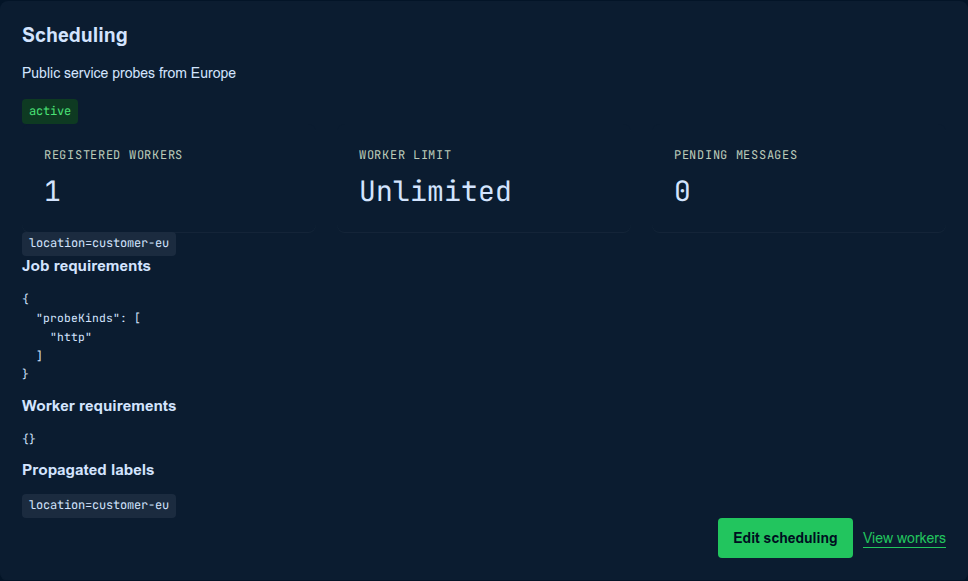
CLI equivalents for inspection:
urthctl get runner quickstart-runner -o yaml
urthctl get workers -l 'urth/runner.name=quickstart-runner'
urthctl get results service-http-lab
To edit Runner policy, read its current manifest, edit spec.active,
spec.maxInstance, spec.jobRequirements, or spec.workerRequirements, then apply:
Edit the file between those commands. Keep its resource version so a concurrent change is refused. Reread the manifest before retrying a stale edit.
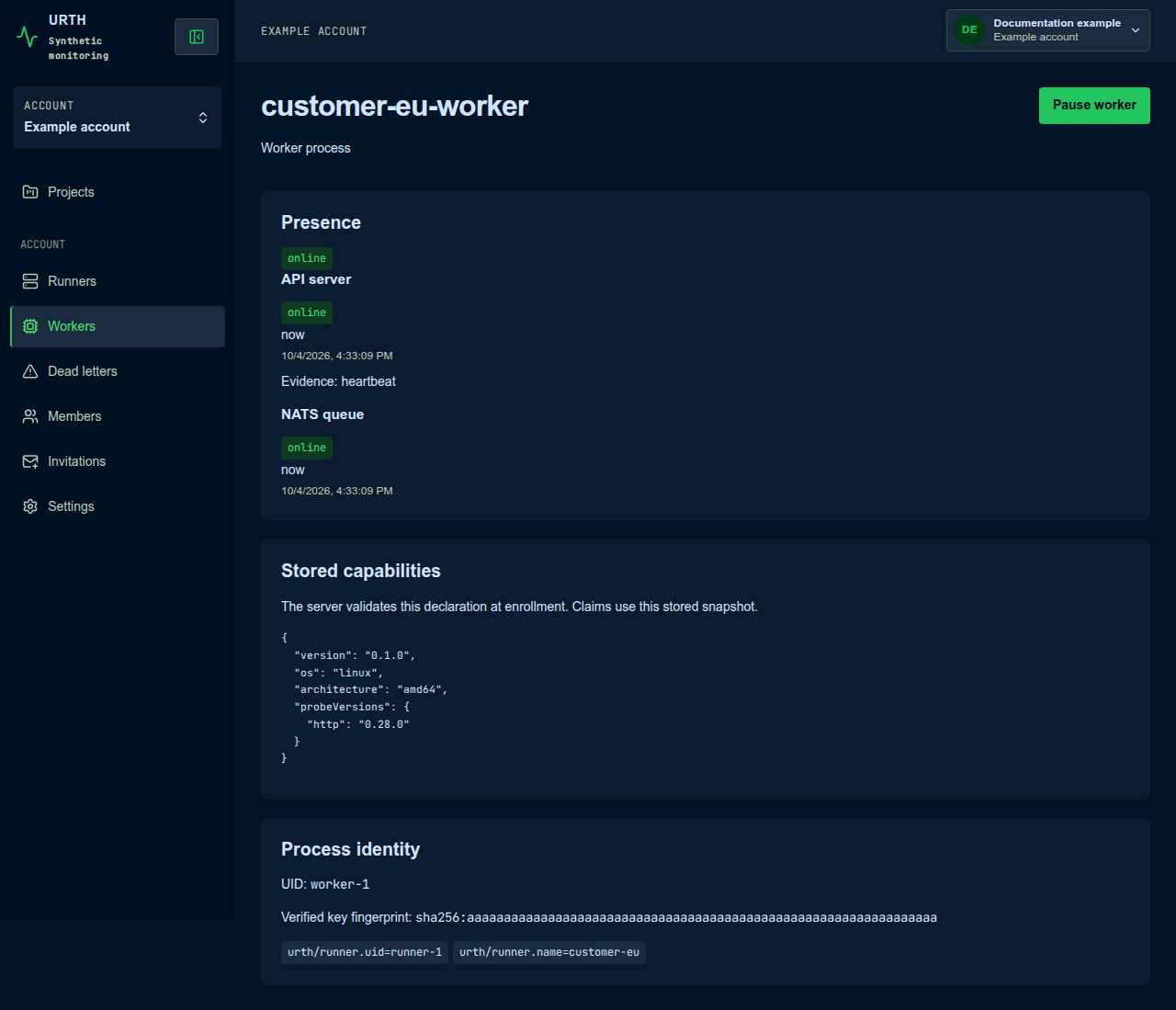
Open Workers → your Worker to inspect its API and NATS presence separately. Use Pause worker before planned maintenance and Resume worker afterward. Pausing prevents new claims; already claimed probes can finish. It does not stop the process. The current CLI has no Worker pause command; use this UI control.
You provide the process supervisor, restart policy, persistent state, and
capacity. Adjust --concurrency in the Worker service configuration when probes
compete for host resources or place excessive load on the target.
Rotate enrollment tokens
Open Runners → your Runner → Manage tokens. Select Create token for the replacement. Update the affected installations and confirm they can enroll or refresh. Select Revoke beside the old token only after the replacement works.
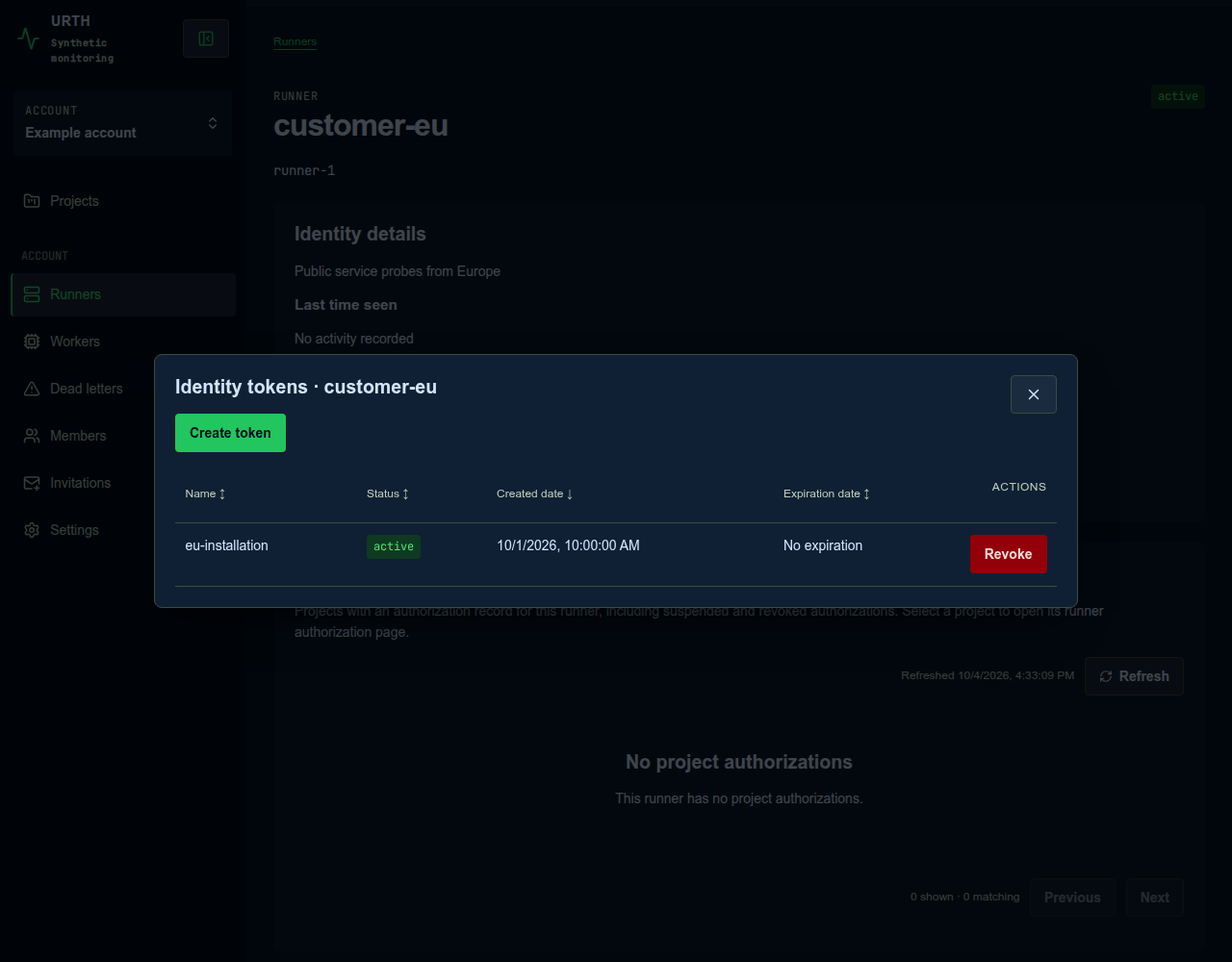
The CLI provides the same token operations:
urthctl runners tokens list quickstart-runner
urthctl runners tokens issue quickstart-runner replacement-installation \
  > "$URTH_ENROLLMENT_TOKEN_FILE"
urthctl runners tokens revoke TOKEN_ID
Create or select a private output file as in
Obtain a private enrollment token file
before issuing the replacement. Replace TOKEN_ID with the old token's UID
from the list. Issuance does not revoke earlier tokens. Existing sessions and
claimed runs have their own bounded lifetimes.
Update the Worker and probe definitions
- Pause the installation in its Worker detail page.
- Wait for its current runs to finish, or handle them under your maintenance policy.
- Stop its supervised process. For the Debian Worker service, use
sudo systemctl stop urth-worker. - Install the selected compatible Worker release using your installation method.
- Preserve its installation key, enrollment token, TLS files, and configuration.
- Restart the process. For the Debian service, use
sudo systemctl start urth-worker. - Inspect enrollment and capabilities, then resume the Worker and trigger a test Scenario.
For a container, replace its image with the selected release digest and retain
its private configuration volume. For a snap, use the approved channel with
snap refresh urth-worker. Check that the new build still satisfies Runner
requirements. If it creates a new registration, inspect that registration's
pause state before allowing normal work.
Built-in probe implementations are updated with the Worker release. Browser and script runtimes are separate dependencies you maintain on the host. Scenario definitions are separate API resources. In the UI, open the project, select Scenarios → your Scenario → Edit scenario, save, then select Run now. For the CLI:
urthctl get scenario service-http-lab -o yaml > scenario.yaml
urthctl run -f scenario.yaml
urthctl apply scenario.yaml
urthctl trigger service-http-lab
Edit the exported file before the local run. Local execution tests from your CLI machine, not the remote Worker location. See Create test scenarios for a full authoring walkthrough. Inspect the recorded run after triggering it. Changes to a Scenario do not rewrite execution input already captured for an existing job.
Remove a Worker or probe
For temporary probe removal, open Edit scenario and set Scheduling to
Disabled. In the CLI, export the current Scenario, set spec.active: false,
and apply it. This prevents new runs; it does not cancel jobs already created.
For permanent Worker retirement, pause it, stop and disable its supervisor, and record its verified fingerprint from Workers → your Worker → Process identity. Open its Runner's Blocked workers → Block worker to deny future enrollment and claims by that installation. CLI equivalents:
urthctl get worker WORKER_NAME -o json
urthctl runners block quickstart-runner 'sha256:FINGERPRINT' \
  --reason 'Retired installation'
Replace the placeholders with the Worker name and its exact fingerprint.
Revoke an installation-specific enrollment token when it is no longer needed.
Do not revoke a shared token until the other installations have replacements.
For a Debian service, use sudo systemctl disable --now urth-worker and
sudo apt remove urth-worker. For a snap, use sudo snap remove urth-worker.
For an archive or container, remove its executable or stopped container through
your deployment tool. Retire private state and credentials under your retention
policy after confirming that the installation will not be reused.
To remove a Runner's access to the selected project:
Use the grant's name from the list. This affects new claims; already claimed runs retain bounded reporting authority. In the UI, use the project's Runner authorization controls to revoke that grant.
The current CLI has no general delete command, and these UI pages do not offer
Worker or Scenario deletion. To delete a registration or Scenario permanently,
use an authenticated API client with the appropriate account or project authority:
| Resource | Read current UID and version | Delete route |
|---|---|---|
| Worker registration | urthctl get worker WORKER_NAME -o json |
DELETE /v1/accounts/ACCOUNT_UID/workers/WORKER_UID?version=VERSION |
| Scenario definition | urthctl get scenario SCENARIO_NAME -o json |
DELETE /v1/projects/PROJECT_UID/scenarios/SCENARIO_UID?version=VERSION |
Substitute metadata.uid and metadata.version from the read. Use the selected
account or project's UID and the configured API endpoint. Reread after a version
conflict. Deleting a registration alone does not prevent reenrollment. Deleting
a Scenario does not cancel previously created jobs or replace an artifact
retention policy.
Diagnose access failures in order
- Confirm the Worker can authenticate and enroll into the intended Runner.
- Confirm the Runner is active and authorized for the intended project.
- Confirm Scenario selectors and Worker capabilities permit the job.
- Confirm the Worker can reach the API and broker.
- Test the target's DNS, route, TLS, and credentials from the Worker location.
- Inspect the Result, logs, and dispatch diagnostics.
A healthy Worker can still observe an unavailable service. An unavailable Worker provides no evidence that the target service is unavailable.